
Convert STP files to compact GLTF models for interactive web and 3D previewing.


Watch our quick tutorial or read:
Compare STP to GLTF converters and find the best fit for your workflow.
|
MeshInspector
|
MeshInspector
|
Other Converters
|
|
|---|---|---|---|
| Speed |
Ultra-fast Local processing
|
Fast
|
Slow
|
| File Size Limits |
Unlimited
|
Unlimited
|
File size limit (50 MB)
|
| File Number Limits |
Unlimited
|
Unlimited
|
Usually single file only
|
| Folder Support |
Full folder import
|
Full folder import
|
Not supported
|
| Assembly Conversion |
Partial or full assembly
|
Partial or full assembly
|
Not supported
|
| Mesh Validation |
Integrated
|
Integrated
|
Not supported
|
| Auto Mesh Repair |
Advanced
|
Advanced
|
Not supported
|
| Mesh Repair Options |
Advanced
|
Advanced
|
Not supported
|
| Accuracy Control |
Full
|
Full
|
Not supported
|
| 3D Viewer |
Advanced
|
Advanced
|
Basic or no preview
|
| 3D Editor |
Advanced
|
Advanced
|
Not supported
|
| Security & Privacy |
100% Local
|
SSL + Auto-delete
|
Files often stored on servers
|
| Cross-Platform |
Windows, macOS, Linux
|
All devices
|
Web only, limited mobile UX
|
| Suitable for |
Professionals and engineers
|
Quick online conversions
|
Not recommended
|
Join thousands of engineers who trust MeshInspector for their 3D file conversion needs. Start converting today with no limits and professional results.
Powered by MeshInspector technology for reliable file conversion.
Converting models from STP files to GLTF is a routine task for 3D professionals. Whether you plan to change, export, or combine multiple parts into a single file, the MeshInspector program offers a fast and reliable way to complete the conversion and tackle all related tasks.
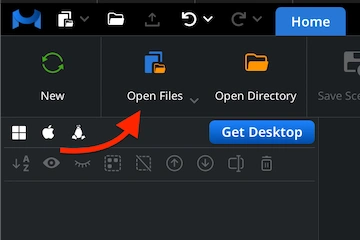
Launch MeshInspector to start your conversion. Once it is open, switch to the ’Home’ tab and select ‘Open Files’. Choose the STP file that you intend to convert into GLTF format.
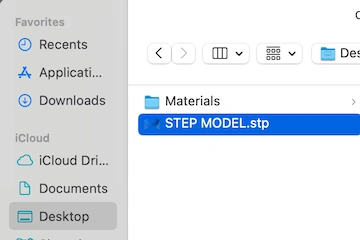
A file browser window will appear. Find your .stp file, click on it, and confirm your selection with ‘Upload’ or by double-clicking the filename. Our program will display it.
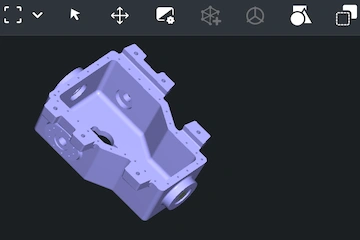
After import, the object is displayed in the main viewport. MeshInspector accurately preserves all details from the original STP data while enabling smooth inspection.
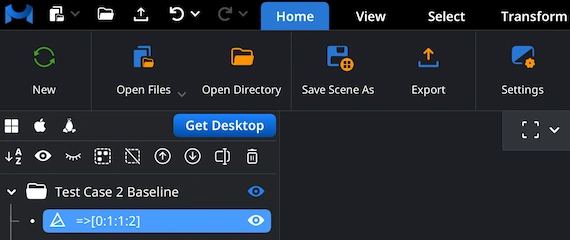
To initiate the STP-to-GLTF conversion, locate your model in the Scene Tree and right-click it. The model becomes highlighted in blue, indicating that the STP is ready for export. MeshInspector effortlessly and quickly handles large assemblies. You can export entire structures, whichever fits you best.
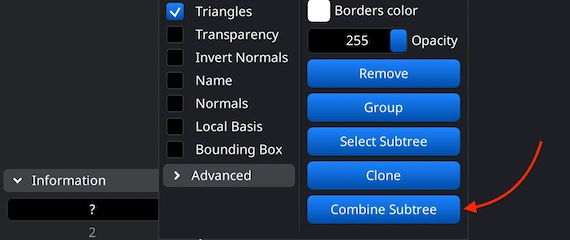
To save an assembly as a single unified object, first, upload your STP file and group its parts. In the Scene Tree, select the relevant group, right-click, and choose ‘Combine Subtree’ to merge all components. If the assembly has not been grouped yet, highlight the desired files, right-click, and select ‘Group’ before combining them.
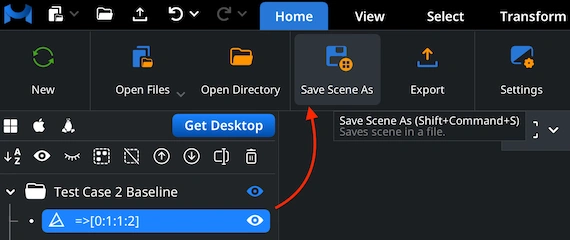
Unlike the standard ‘Export’ command, you should use ‘Save Scene As’ for GLTF output. It is located under the ’Home’ tab, too. We will then export a GLTF scene.
After clicking ‘Save Scene As’, the ‘Save File’ dialog will appear. Here, you are free to rename your project and switch the format to GLTF before confirming the save.
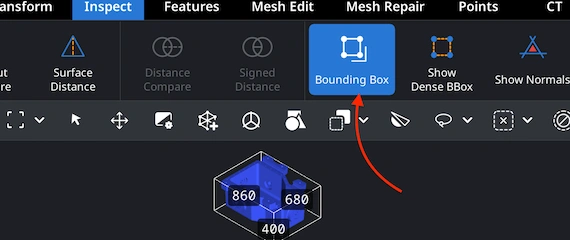
Once your GLTF file has been generated, reopen it in MeshInspector. Typically, the first thing to do is to validate scale and proportions. Navigate to the ‘Inspect’ tab and enable ‘Bounding Box.’ It visualizes the model’s total spatial extent. This step helps confirm that the converted model has its intended dimensions for subsequent tasks.
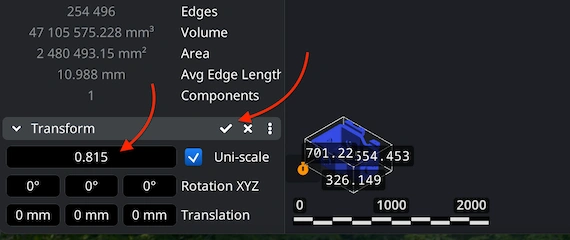
If the GLTF appears to be too small or large, go to the 'Transform' panel. It is located right under ‘Information.’ Move the Scale slider to modify its proportions and volume. When the geometry looks adequate, apply the adjustment by clicking the checkmark icon. This ensures your GLTF model aligns with the required dimensions.

100% Secure
No data leaves your device
Sales team can finally show the product in 3D without installing heavy apps. You made my job easier today. Thank you!