MCP (Model Context Protocol) is an open standard that lets an AI assistant use other programs as tools. MeshInspector has a built-in MCP server. When you connect an assistant such as Claude Desktop, Claude Code, Cursor or Codex to it, you describe a task in plain words and the assistant does the work in your MeshInspector window: it opens files, reads the scene, opens tools, sets their parameters, presses buttons, takes screenshots and can run Python.
The assistant works through the same interface you see, so it can use any tool on the Ribbon by name. This is useful for repetitive multi-step jobs, for checking a batch of files, or when you want to ask "what is wrong with this mesh?" and get an answer from the app itself.
What you need
- MeshInspector for desktop, version 2.5.8 or newer (the current release is 2.5.9) on macOS or Windows. The bridge program
McpGatewayis installed together with the app. - A signed-in MeshInspector account. While you are signed out, MeshInspector rejects almost every tool call of the assistant with the message "MeshInspector is signed out — MCP tools are disabled. Ask the user to sign in, then retry." Only the tool list, screenshots (
viewer_captureScreenshot) and closing the app (viewer_shutdown) still work. Sign in and ask again. - An MCP client: Claude Desktop, Claude Code, Cursor, Codex or another client that can start a local MCP server.
- Nothing else. The bridge needs no Node.js, no Python and no API key.
MCP does not unlock tools: the assistant gets the same buttons as you. A tool that is not in your plan is disabled for the assistant too. Running Python through MCP (python_run) needs the Python tool, which is part of the Professional plan and the trial.
How the connection works
MeshInspector runs its MCP server on your own computer only: address 127.0.0.1, port 7887. MCP clients usually start a server as a local program and talk to it through its input and output. McpGateway is that program: the client starts it, and it passes every request on to MeshInspector.
- If MeshInspector is closed, the assistant starts it with the gateway's
launchtool. MeshInspector started this way always has MCP turned on. - The gateway remembers the list of MeshInspector tools, so the assistant sees them even before MeshInspector is running.
Where the gateway is installed:
| System | Gateway file |
|---|---|
| macOS | /Applications/MeshInspector.app/Contents/MacOS/McpGateway |
| Windows | C:\Program Files\MeshInspector\MeshInspector\McpGateway.exe (default install folder, next to MeshInspector.exe) |
Turn on MCP in MeshInspector
If you open MeshInspector yourself (from the Dock, the Start menu or a file) and then ask the assistant to work in it, turn MCP on first: Home › Settings, the MCP tab.
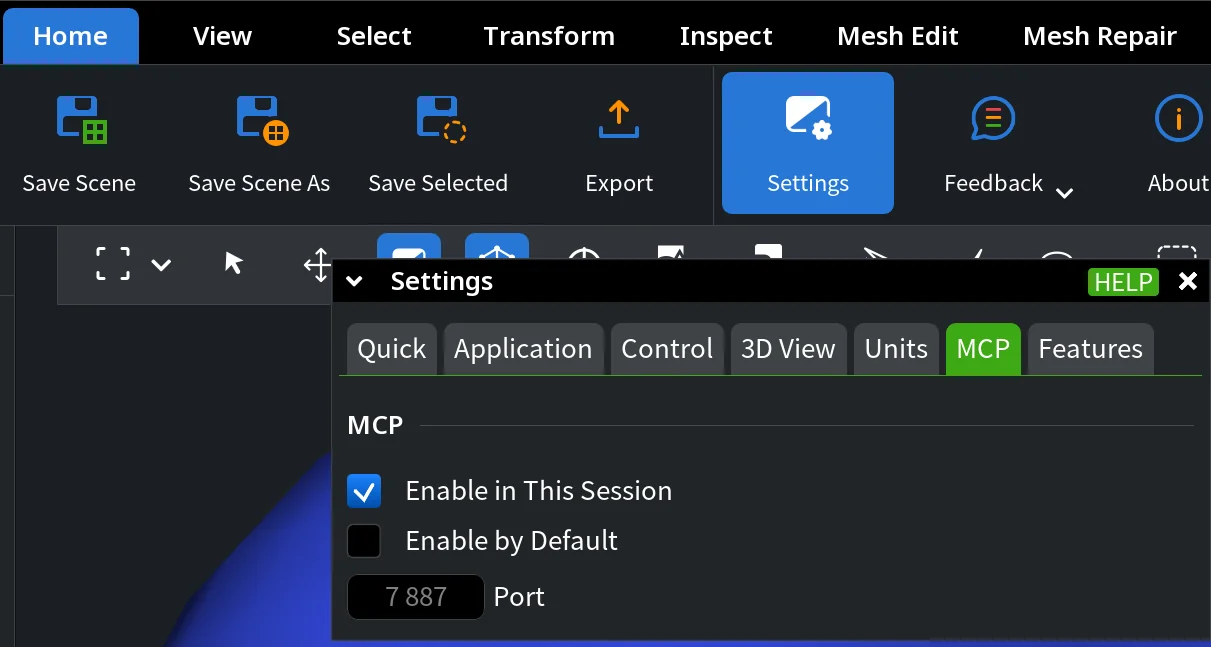
- Enable in This Session starts or stops the MCP server now.
- Enable by Default starts the server every time MeshInspector starts. Turn it on if you usually open MeshInspector before you ask the assistant.
- Port is
7887by default. The field is grey (read only) when MeshInspector was started with the-mcpPortflag, for example by the gateway, because the flag sets the port.
If MCP is off in an open MeshInspector window, the gateway cannot reach it and starts one more MeshInspector window.
Connect your AI assistant
Claude Desktop
- Open the Claude Desktop configuration file
claude_desktop_config.json: on macOS it is in~/Library/Application Support/Claude/, on Windows in%APPDATA%\Claude\. In Claude Desktop you can also open it from the Developer section of its settings. - Add the
meshinspectorentry. If the file already hasmcpServers, add only themeshinspectorblock inside it.
macOS:
{
  "mcpServers": {
    "meshinspector": {
      "command": "/Applications/MeshInspector.app/Contents/MacOS/McpGateway",
      "args": ["--launch-cmd", "MeshInspector"]
    }
  }
}
Windows (in JSON every backslash of the path is doubled):
{
  "mcpServers": {
    "meshinspector": {
      "command": "C:\\Program Files\\MeshInspector\\MeshInspector\\McpGateway.exe",
      "args": ["--launch-cmd", "MeshInspector"]
    }
  }
}
- Save the file, quit Claude Desktop completely and start it again. The
meshinspectorserver and its tools appear in the list of connectors.
--launch-cmd MeshInspector tells the gateway which program to start. The name is resolved in the gateway's own folder, and on Windows .exe is added automatically, so the bare name is enough.
Claude Code
Run one command in a terminal. --scope user makes MeshInspector available in all your projects; without it the server is added to the current project only.
macOS:
claude mcp add --scope user meshinspector -- /Applications/MeshInspector.app/Contents/MacOS/McpGateway --launch-cmd MeshInspector
Windows (PowerShell):
claude mcp add --scope user meshinspector -- "C:\Program Files\MeshInspector\MeshInspector\McpGateway.exe" --launch-cmd MeshInspector
Check the connection with the command below, or type /mcp inside a Claude Code session:
claude mcp list
Cursor
Cursor reads MCP servers from mcp.json: ~/.cursor/mcp.json for all projects (on Windows %USERPROFILE%\.cursor\mcp.json) or .cursor/mcp.json inside one project folder. Add the same mcpServers block as for Claude Desktop (the macOS or the Windows variant), save the file and check in Cursor's settings, in the MCP section, that meshinspector is listed and turned on.
Codex
macOS:
codex mcp add meshinspector -- /Applications/MeshInspector.app/Contents/MacOS/McpGateway --launch-cmd MeshInspector
Windows (PowerShell):
codex mcp add meshinspector -- "C:\Program Files\MeshInspector\MeshInspector\McpGateway.exe" --launch-cmd MeshInspector
Check it with codex mcp list.
Other MCP clients
Any client that can start a local (stdio) MCP server works the same way: the command is the gateway file from the table above, the arguments are --launch-cmd and MeshInspector.
A client that connects only to a URL can use the SSE address of MeshInspector directly. In that case MeshInspector must already be open with MCP turned on, and the assistant cannot start it. For example, in Claude Code:
claude mcp add --transport sse meshinspector http://127.0.0.1:7887/sse
Linux: the gateway has not been validated on Linux yet. The pattern is the same: point the command at the McpGateway file of your installation and keep --launch-cmd MeshInspector.
Check that it works
- Restart the client after you change its configuration.
- Make sure you are signed in to MeshInspector.
- Ask the assistant:
Launch MeshInspector and tell me which version is running.
The assistant calls launch (the answer is "started" or "already running") and then system_info. If MeshInspector opens and the assistant reports the version, the connection works. Then try a scene request:
In MeshInspector, list the objects in the scene with their number of triangles, number of holes and size.
What the assistant can do: MeshInspector MCP tools
MeshInspector 2.5.9 gives the assistant 32 tools, and the gateway adds two more. The assistant chooses them by itself; you do not need to name them. The table helps you understand what it is doing when the client asks you to approve a tool call.
| Group | Tools | What they do |
|---|---|---|
| Gateway | launch, status |
Start MeshInspector; check whether it is running. |
| Scene | scene_listObjectTree, scene_getObjectInfo, scene_addObject, scene_getObject, scene_setObjectState, scene_removeObject |
List objects; read counts, size and colors; open a file; save an object to a file; rename, show, hide, select, move, rotate, scale or recolor an object; delete it. Changes can be undone. |
| Tools | tools_listAll, tools_getInfo, tools_action, tools_listActive |
Find any tool by name with its tab, tooltip and status (available or the reason it is disabled); open, close or run it. |
| Interface | ui_listEntries, ui_listAllEntries, ui_pressButton, ui_readValueInt, ui_readValueUint, ui_readValueReal, ui_readValueString, ui_writeValueInt, ui_writeValueUint, ui_writeValueReal, ui_writeValueString, ui_stageFileDialogPaths, ui_progressStatus |
Read the buttons and fields of open windows, press buttons, read and set values within their limits, answer Open and Save dialogs with a file path, wait for long operations. |
| Viewer | viewer_fit, viewer_setupCamera, viewer_captureScreenshot, viewer_sendMouseEvent, viewer_sendKeyboardEvent, viewer_shutdown |
Frame objects, turn the camera, take a screenshot of the window or the 3D view, send clicks and keys, close MeshInspector. |
| System | system_info, system_log |
Read the version, system and graphics card; read the MeshInspector log. |
| Python | python_run |
Run a Python script inside MeshInspector and return its output. |
The ui_* tools see the window the same way as the Python functions uiListEntries(), uiPressButton() and uiReadValueReal(), described in Navigating MeshInspector's UI Tree Programmatically.
Example requests
Open /Users/me/Scans/part.stl in MeshInspector, open Mesh Healer and tell me which problems it finds. Do not repair anything yet.
In MeshInspector, look at the selected object from the top and save a screenshot of the 3D view only to /Users/me/Desktop/part-top.png.
For every object in the scene, tell me the number of triangles, the number of holes and the volume, as a table.
Troubleshooting
| Problem | What to do |
|---|---|
| "Signed out" | The message "MeshInspector is signed out — MCP tools are disabled" means you are not signed in. Sign in to MeshInspector and repeat the request. |
| Not started | The status tool answers "not started" when MeshInspector is closed or its MCP server is off. Ask the assistant to launch MeshInspector, or turn on Home › Settings › MCP › Enable in This Session. |
| Second window | A second MeshInspector window opens when MCP is off in the first one. Turn on Enable in This Session (or Enable by Default) in the first window and close the second. |
| Port is busy | Another program or another MeshInspector already uses port 7887. Choose another port with --mcp-port (see below). If you open MeshInspector yourself, set the same Port in Settings › MCP. |
| Slow start | launch waits 30 seconds by default. On a slow computer add --launch-timeout with a larger value, for example 60. |
| Server fails | Check the gateway path in the configuration. On Windows the backslashes in JSON must be doubled. |
| Old tool list | The gateway refreshes its tool list after a MeshInspector update by itself. If the assistant still shows old tools, delete the folder ~/.local/share/MRMCPGateway (macOS) or %APPDATA%\MRMCPGateway (Windows) and restart the client. |
| Firewall | The connection stays on your computer (127.0.0.1), so no firewall rule is needed. If security software blocks it, allow local connections for MeshInspector and McpGateway. |
To see what went wrong inside the app, ask the assistant to read the MeshInspector log (the system_log tool).
Advanced options
All options go into the args list of the configuration (or after -- in the claude mcp add and codex mcp add commands).
| Option | Default | What it does |
|---|---|---|
--launch-cmd |
required | The program that launch starts. A relative name is resolved in the gateway's folder; on Windows .exe is added. |
--launch-arg |
none | One extra command-line argument for MeshInspector. Repeat the option for every argument. The assistant can replace these arguments for one launch call. |
--launch-timeout |
30 |
How many seconds launch waits for MeshInspector to start. |
--mcp-port |
7887 |
The MCP port. The gateway passes it to MeshInspector as -mcpPort and connects to it. |
--target-url |
http://127.0.0.1:<port> |
The address of the MeshInspector MCP server. |
--sse-path |
/sse |
The SSE endpoint of the server. |
--messages-path |
/messages |
The endpoint for requests. |
--tools-cache-namespace |
none | A separate sub-folder for the tool cache, if several MeshInspector installations are used. |
Custom MCP port
To use another port, or to run two MeshInspector windows side by side with separate assistant sessions, add --mcp-port. One option moves the whole connection: the gateway starts MeshInspector on that port and connects to it.
{
  "mcpServers": {
    "meshinspector": {
      "command": "/Applications/MeshInspector.app/Contents/MacOS/McpGateway",
      "args": ["--launch-cmd", "MeshInspector", "--mcp-port", "8888"]
    }
  }
}
Extra arguments for MeshInspector
To pass command-line arguments to MeshInspector when the gateway starts it, add --launch-arg once for every argument, in order. This Windows example starts MeshInspector without the splash screen and opens a scene:
{
  "mcpServers": {
    "meshinspector": {
      "command": "C:\\Program Files\\MeshInspector\\MeshInspector\\McpGateway.exe",
      "args": ["--launch-cmd", "MeshInspector", "--launch-arg", "-noSplash", "--launch-arg", "C:\\path\\to\\scene.mru"]
    }
  }
}
Work safely
The assistant works in your open MeshInspector session and can do everything you can: change, move or delete objects, overwrite files and run Python, which can read and write files on your computer.
- Save your scene (Home › Save Scene) before you give the assistant a task.
- Keep your client's approval of tool calls turned on, at least for
python_runand for saving files, and read what the assistant is about to do. - Most scene changes can be reverted with Undo.


