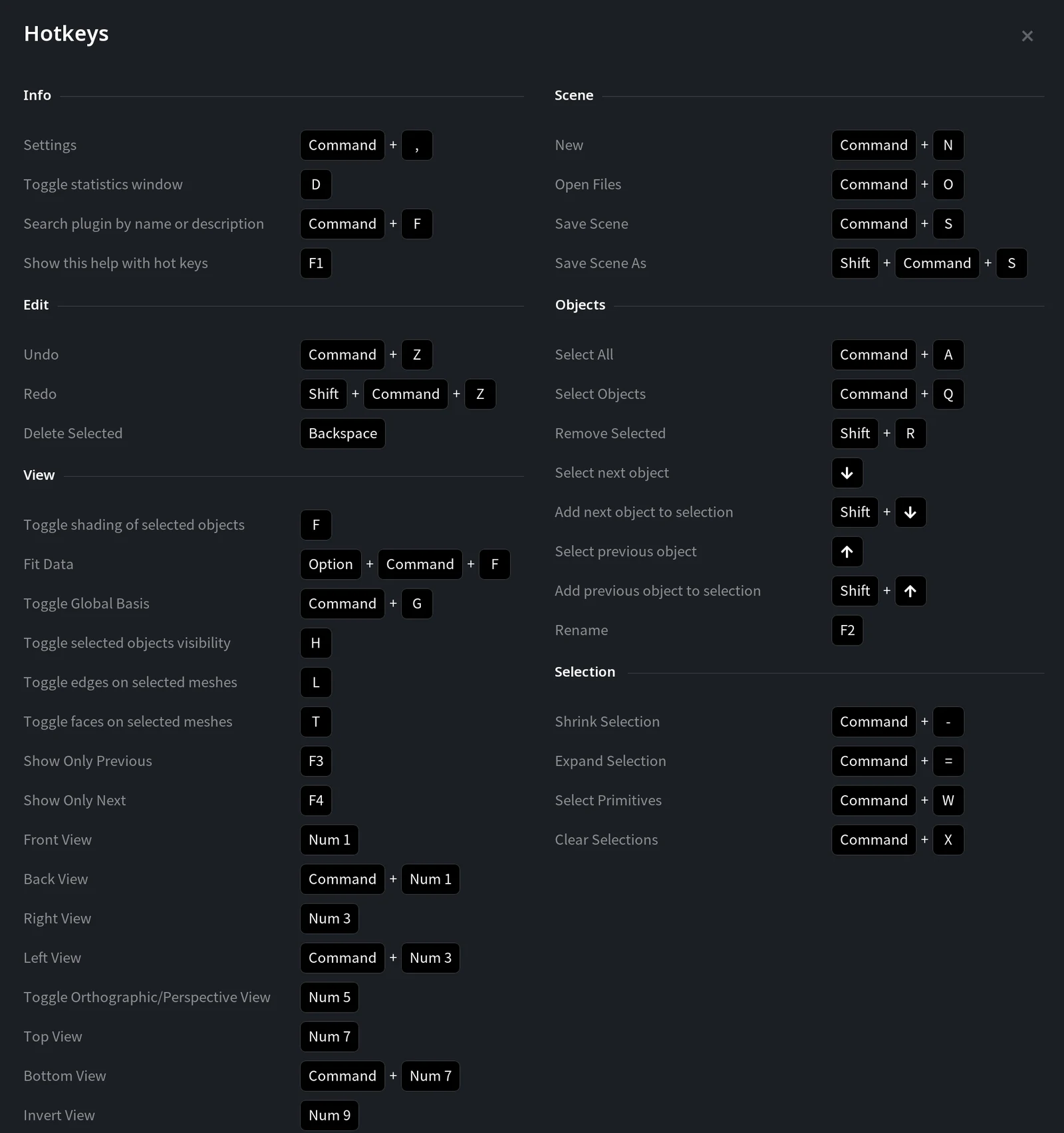
To see all keyboard shortcuts in the app, press F1, or click Show Hotkeys in Home › Settings (on the Quick or the Control tab). The Hotkeys window lists the shortcuts by group.
On macOS press Cmd instead of Ctrl, Option instead of Alt and Backspace instead of Delete. The tables below give both variants. Num keys are the keys of the numeric keypad.
Files and scene
| Action | Windows and Linux | macOS |
|---|---|---|
| New | Ctrl+N | Cmd+N |
| Open Files | Ctrl+O | Cmd+O |
| Save Scene | Ctrl+S | Cmd+S |
| Save Scene As | Ctrl+Shift+S | Cmd+Shift+S |
Edit: undo, redo and delete
| Action | Windows and Linux | macOS |
|---|---|---|
| Undo | Ctrl+Z | Cmd+Z |
| Redo | Ctrl+Shift+Z | Cmd+Shift+Z |
| Delete Selected | Delete | Backspace |
Delete Selected deletes the selected area of a mesh or the selected points of a point cloud. To remove whole objects from the scene, use Remove Selected (see Scene tree and objects).
View and camera
| Action | Windows and Linux | macOS |
|---|---|---|
| Fit Data | Ctrl+Alt+F | Cmd+Option+F |
| Front View | Num 1 | Num 1 |
| Back View | Ctrl+Num 1 | Cmd+Num 1 |
| Right View | Num 3 | Num 3 |
| Left View | Ctrl+Num 3 | Cmd+Num 3 |
| Top View | Num 7 | Num 7 |
| Bottom View | Ctrl+Num 7 | Cmd+Num 7 |
| Invert View | Num 9 | Num 9 |
| Toggle Orthographic/Perspective View | Num 5 | Num 5 |
| Toggle Global Basis | Ctrl+G | Cmd+G |
| Toggle selected objects visibility | H | H |
| Toggle shading of selected objects | F | F |
| Toggle edges on selected meshes | L | L |
| Toggle faces on selected meshes | T | T |
| Show Only Previous | F3 | F3 |
| Show Only Next | F4 | F4 |
Selection
| Action | Windows and Linux | macOS |
|---|---|---|
| Select Primitives | Ctrl+W | Cmd+W |
| Expand Selection | Ctrl+= | Cmd+= |
| Shrink Selection | Ctrl+- | Cmd+- |
| Clear Selections | Ctrl+X | Cmd+X |
Scene tree and objects
| Action | Windows and Linux | macOS |
|---|---|---|
| Select All | Ctrl+A | Cmd+A |
| Select Objects | Ctrl+Q | — (see the note below) |
| Select next object | Down Arrow | Down Arrow |
| Add next object to selection | Shift+Down Arrow | Shift+Down Arrow |
| Select previous object | Up Arrow | Up Arrow |
| Add previous object to selection | Shift+Up Arrow | Shift+Up Arrow |
| Rename | F2 | F2 |
| Remove Selected | Shift+R | Shift+R |
On macOS the Hotkeys window shows Cmd+Q for Select Objects, but Cmd+Q is the macOS shortcut that quits the app, so it closes MeshInspector instead. Save your scene before you try it.
App and help
| Action | Windows and Linux | macOS |
|---|---|---|
| Settings | Ctrl+, | Cmd+, |
| Search plugin by name or description | Ctrl+F | Cmd+F |
| Show this help with hot keys | F1 | F1 |
| Toggle statistics window | D | D |
The mouse buttons that rotate, move and roll the camera are set in Settings › Control › Mouse; see MeshInspector settings.


