

To see which version of MeshInspector you have and which plan your account is on, open the About window: on the Home tab, click About. Sign out is the next button on the same tab.
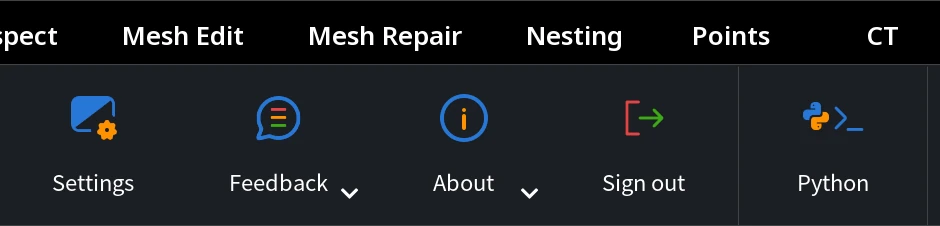
The arrow ▾ next to About opens Open Log, the log file of the app (see how to access log files).
What the About window shows
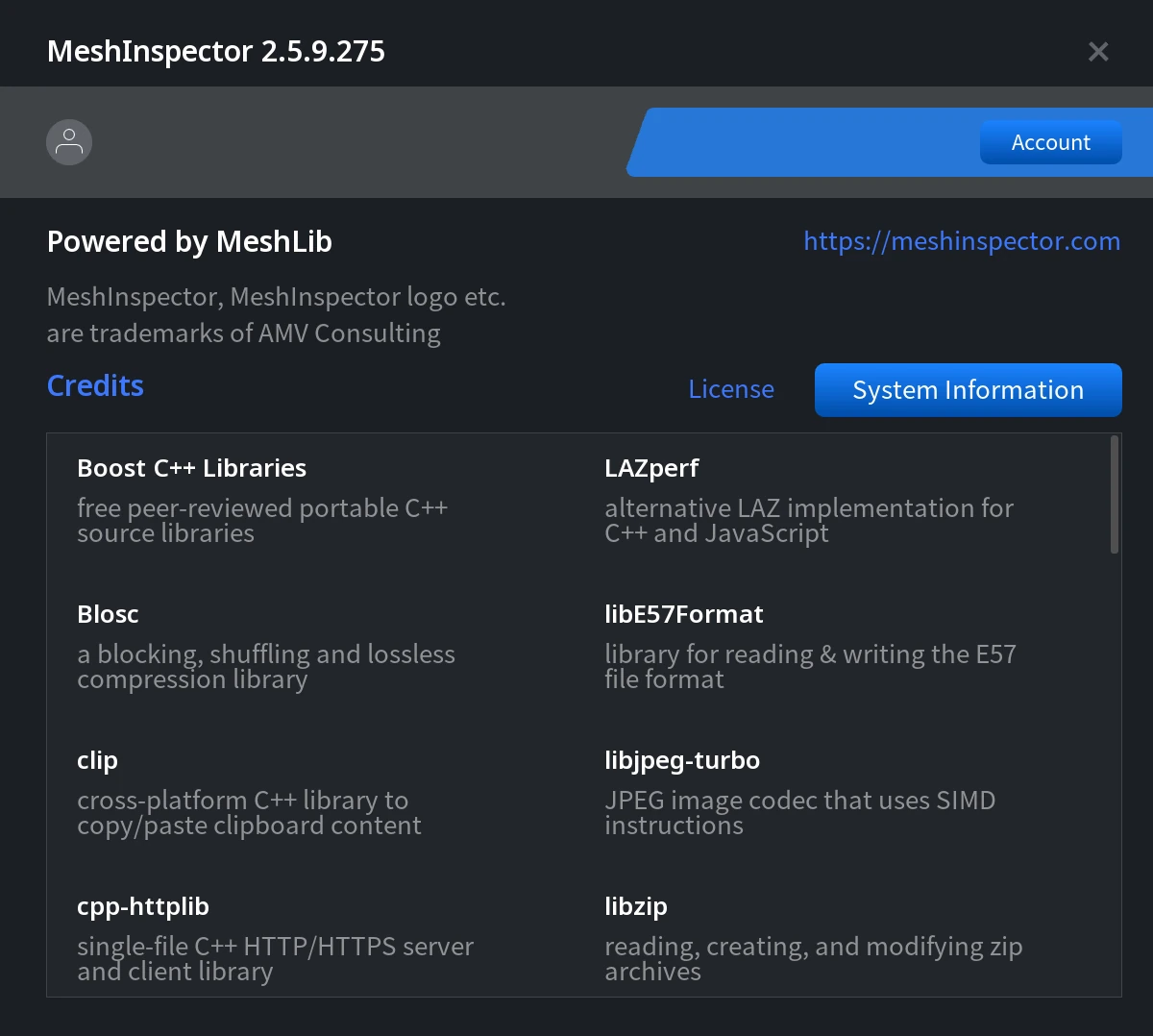
| Part | What it shows or does |
|---|---|
| Title | MeshInspector and the full version number, for example MeshInspector 2.5.9.275. |
| Account row | The email address of the signed-in account, the name of your plan and a button: Account, N days left or Upgrade (see below). |
| Powered by MeshLib | MeshLib, the library MeshInspector is built on. |
| Links | https://meshinspector.com opens the website; support@meshinspector.com starts an email to support. |
| Credits | Opens the license notices of the third-party libraries listed in the window. |
| License | Opens the license that applies to you: the Commercial License for an active paid subscription, otherwise the License page. |
| System Information | Opens the details of your computer and the app, the log file location and Copy to Clipboard. |
Click × in the top right corner to close the window.
Check your plan and the days left
The account row shows the name of your plan:
| Plan name | What it means |
|---|---|
| Community Plan | The free Community plan. You also see it after a trial or a paid subscription has ended. |
| Professional Trial | The free 30-day trial of the Professional plan. |
| Makers Plan | A paid Makers subscription. |
| Professional Plan | A paid Professional subscription. |
| Educational Plan | An educational license. |
| Paused | A paused subscription: the app works as on the Community plan until it is active again. |
The button next to the plan name depends on the state of your subscription:
| Button | When you see it | What it opens |
|---|---|---|
| N days left | During the trial, for example 29 days left. | The buying options: How would you like to buy? |
| Upgrade | On the Community plan, also when the trial or a subscription has ended. | The buying options: How would you like to buy? |
| Account | While a paid subscription is active, cancelled but still paid, or paused. | The Customer Portal in your browser: plan, payment methods, invoices, cancellation. |
During the trial and on the Community plan, the same plan name and button are also shown in a bar above the scene panel; the bar is green during the trial. With an active paid subscription the bar is hidden, and you find your plan in the About window.

How to buy a plan, change it, update the payment method or cancel is explained in Subscription to MeshInspector Explained.
Sign out
To sign out of your account, for example to sign in with another one:
- On the Home tab, click Sign out.
- If the scene has unsaved changes, the Sign Out window asks Save your changes?:
- Save saves the scene and then signs you out;
- Don't Save removes all objects without saving them and signs you out;
- Cancel returns to the app and keeps the objects.
- The app clears the scene and shows the sign-in screen.
What happens after you sign out
- All objects are removed from the scene, and the Undo history is cleared. Files that you saved stay on your disk.
- To use the app again, sign in again, with the same account or with another one.
- Offline work stops: with a paid Professional plan the desktop app can work without internet for up to 7 days, and signing out clears this. The next sign-in needs an internet connection.
- Signing out does not cancel your subscription and does not delete your account.


