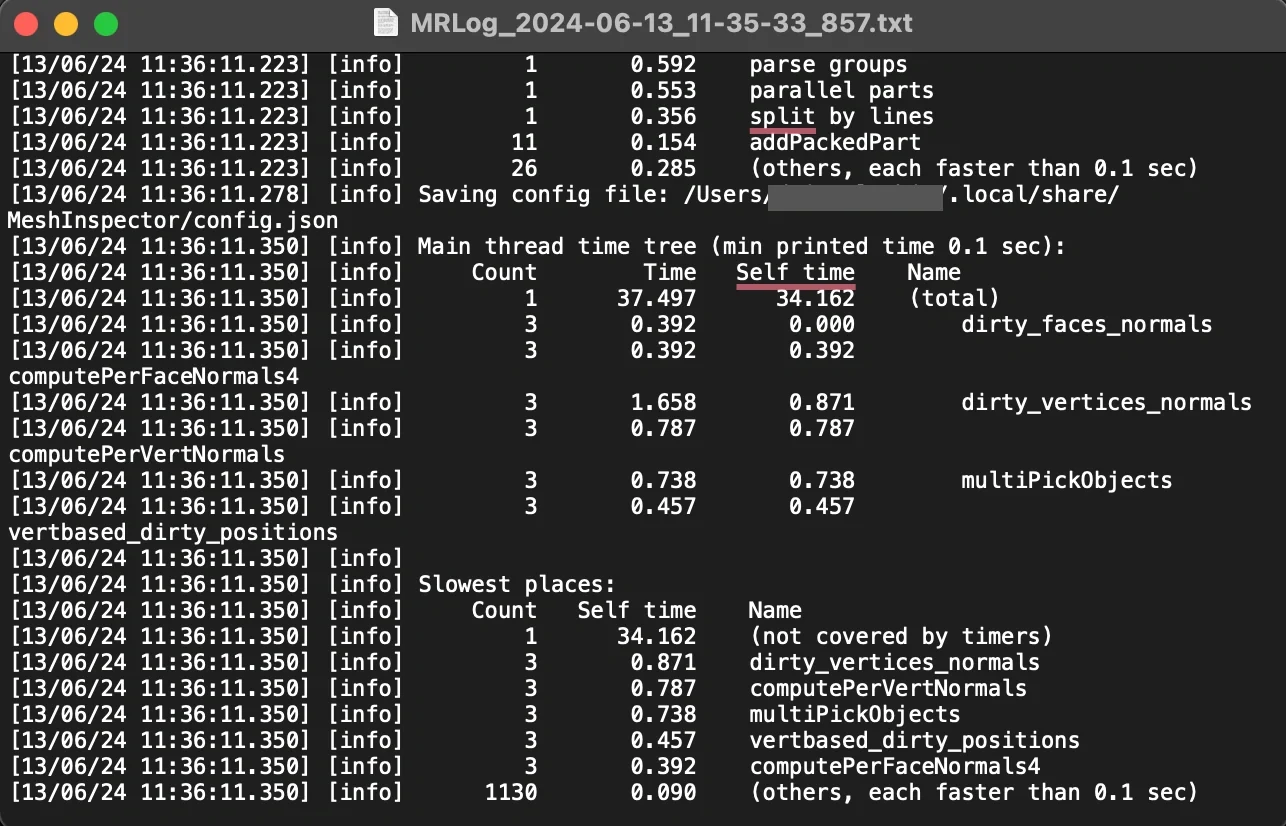
Each time the desktop app starts, MeshInspector writes a new log file: the version of the app, information about your computer, and what the app does, with its warnings and errors. When you report a problem, support asks for this file.
Open the log from the app
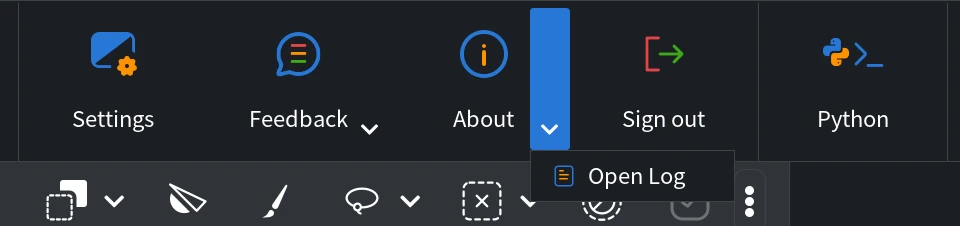
- On the Home tab, click the arrow ▾ next to About.
- Click Open Log.
The log of the current session opens in the app that opens text files on your computer.
Find the log folder
The log folder keeps the logs of the earlier sessions too, for example of a session that ended with a crash. To open it:
- On the Home tab, click About.
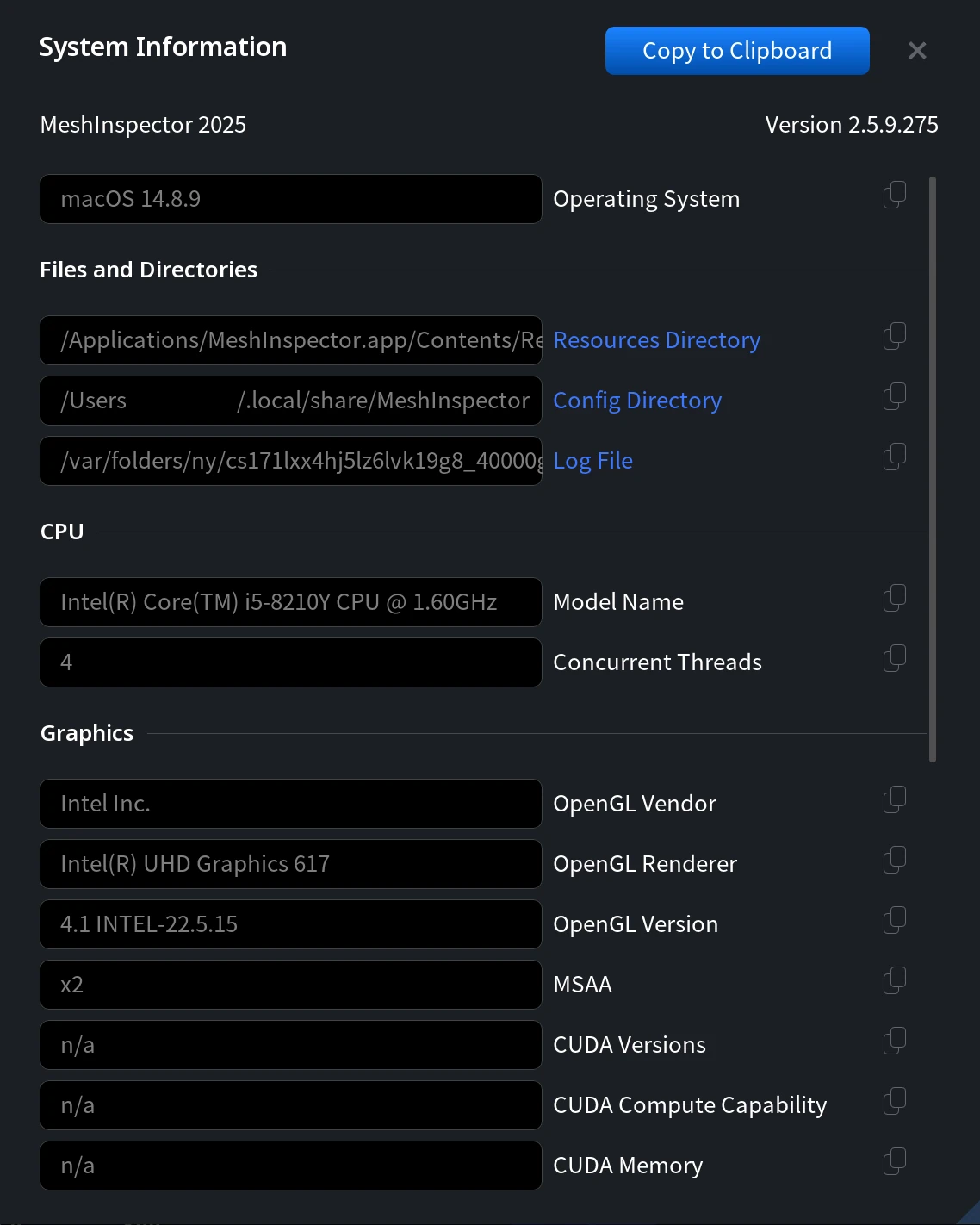
- In the About window, click System Information.
- Under Files and Directories, the Log File line shows the full path of the current log. Click the Log File label to open the folder with the logs, or click the copy icon at the end of the line to copy the path.
Where the logs are on each system
The logs are in the MeshInspector/Logs folder inside the temporary folder of your system:
| System | Log folder |
|---|---|
| Windows | %TEMP%\MeshInspector\Logs, usually C:\Users\<user>\AppData\Local\Temp\MeshInspector\Logs |
| macOS | $TMPDIR/MeshInspector/Logs, a folder under /var/folders/ |
| Linux | /tmp/MeshInspector/Logs |
To open the folder without the app:
- Windows: press Win+R, type
%TEMP%\MeshInspector\Logsand press Enter. - macOS: in Terminal, run the command below.
open "$TMPDIR/MeshInspector/Logs"
Each log is named after the time the app started, for example MRLog_2026-11-03_15-50-34_87643.txt: the date, the
time and the number of the app process. When the app starts, it deletes the logs that are older than 24 hours, so send
the log on the day of the problem.

The web app does not write a log file: Open Log and the Log File line are only in the desktop app.
What to send to support
- The log of the session with the problem. If the app is still open, use About ▾ › Open Log and attach that file. If the app closed or crashed, attach the newest log from the log folder.
- The details of your system: in System Information, click Copy to Clipboard and paste the text into your message.
- What you did, what you expected and what happened instead, with a screenshot and, if you can share it, the file you worked on.
Send it to support@meshinspector.com. Other ways to reach the team are described in Contact Support and Send Feedback.
What log files may be used for
- Troubleshooting: the log shows detailed error messages and warnings that help find and fix a problem in MeshInspector.
- Performance analysis: the log shows how long the operations took, which helps the team understand where the app is slow.
Logs example