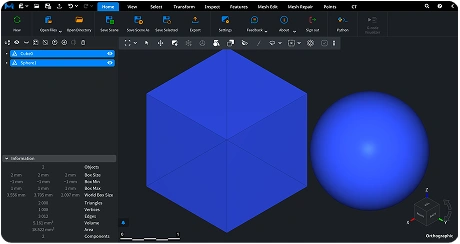
Open, inspect geometry and colors, measure distances and volume, and resize GLTF files for web apps and AR.


Watch our quick tutorial or read:
Compare popular GLTF viewers to find the best one for your 3D workflow.
|
MeshInspector
|
MeshInspector
|
Other STL Readers
|
|
|---|---|---|---|
| Perfomance |
Ultra-fast (GPU acceleration)
|
High
|
Slow
|
| Batch Import |
Unlimited
|
Unlimited
|
Single file
|
| File Limits |
Unlimited
|
Unlimited
|
~100 MB
|
| Measurement Tools |
Advanced
|
Advanced
|
Limited
|
| Metadata Support |
Full
|
Full
|
Not supported
|
| Scaling |
Advanced
|
Advanced
|
Not supported
|
| 3D Editor |
Advanced
|
Advanced
|
Not supported
|
| Screenshots |
Advanced
|
Advanced
|
Limited
|
| Supported Files |
STL (ASCII/Binary), OBJ, PLY, GLTF
|
STL (ASCII/Binary), OBJ, PLY, GLTF
|
STL (Binary)
|
| Export |
Multiple formats
|
Multiple formats
|
Not supported
|
| Security & Privacy |
Corporate security + Local storage
|
SSL + Auto-delete
|
Server-side storage
|
| Cross-Platform |
Windows, macOS, Linux
|
All devices
|
Web only, poor mobile UX
|
| Suitable for |
Professional & industrial use
|
Quick viewing & sharing
|
Not recommended
|
Join thousands of engineers who trust MeshInspector to view and inspect their 3D files. Start exploring your models today with no limits and professional‑grade visualization.
Explore the full MeshInspector ecosystem — advanced 3D model viewers and converters for engineers, designers, and makers.
Professionals dealing with 3D content often search for a dependable program to read GLTF files. That is, a tool capable of loading scenes efficiently, displaying complex materials correctly, and running smoothly across all major operating systems. The MeshInspector program fits this role for GLTF files perfectly and with precision. It is a free and cross-platform viewer. In this capacity, it lets you open, preview, and inspect GLTF models both in your browser and through the desktop option.
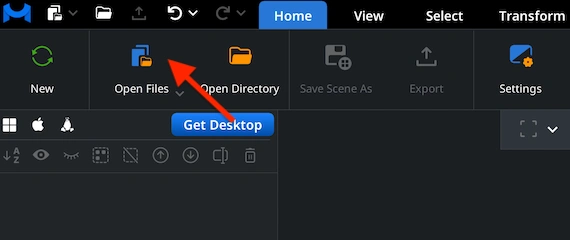
Navigate to the ’Home’ tab and press ‘Open Files.’ Choose your GLTF to import it into the MeshInspector program. Once selected, the viewer parses the GLTF file, loads the geometry and assets associated with it, and prepares the scene for display.
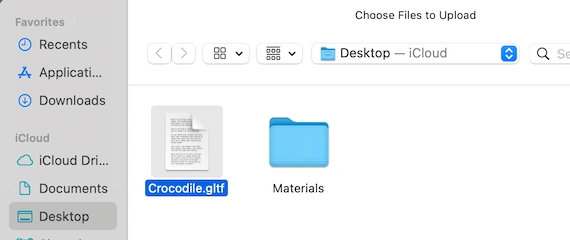
Locate the folder containing your GLTF file to read. Double-click it or confirm the choice using ’Upload.’ The MeshInspector program supports large GLTF projects, containing asset-specific information. The program will unpack and read all that.
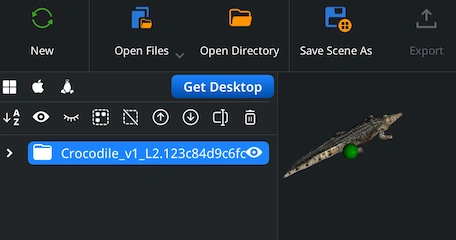
Your .gltf scene appears in MeshInspector’s Scene Tree. You can examine it interactively. That is, rotate using the left mouse button or a one-finger drag, pan with the right mouse button or two-finger motion, or zoom through the mouse wheel or pinch gesture. Also, adjust the viewing angle by holding Ctrl while dragging the left button.
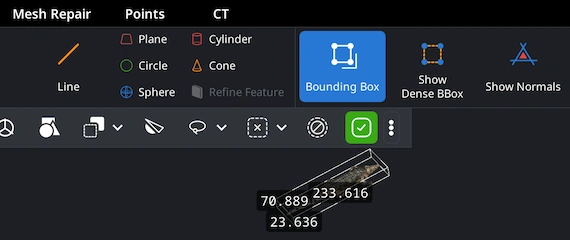
To inspect the physical size of your GLTF mesh, switch to the ’Inspect’ tab and activate ‘Bounding Box’ with the object selected in the Scene Tree. The MeshInspector program to read GLTF files will instantly display the width, height, and depth. This will enable you to confirm proportions and ensure the scale matches your requirements.
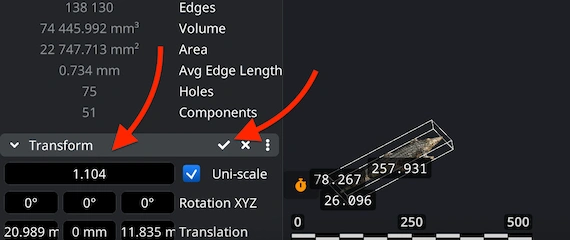
If your GLTF project needs resizing, go to the ’Transform’ panel in the lower-left corner. There, adjust the Scale slider. After choosing the desired value, apply the transformation by clicking the checkmark icon. The scene updates immediately, i.e., the bounding box and volume values are recalculated accordingly.
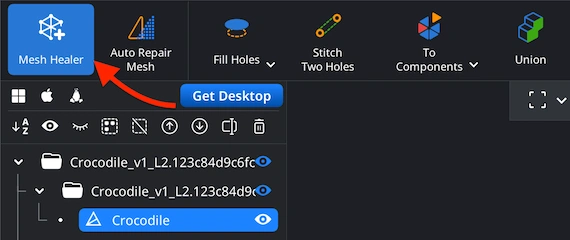
As with any format, issues like non-manifold geometries, holes, or inverted normals, etc., may always occur. To assess the integrity of your GLTF, open ’Mesh Healer’ under the ’Mesh Repair’ section. The utility analyzes your GLTF and highlights problem areas.
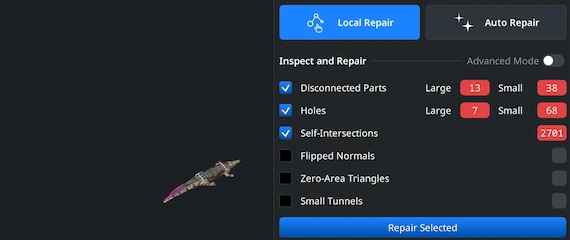
Make use of the ‘Local Repair’ tool to inspect the model for specific problems, for example, fragmented surfaces, disconnected components, or other issues. Enable the checks you need and let the tool process the mesh. Alternatively, ‘Auto Repair’ will attempt to automatically reconstruct your geometry.
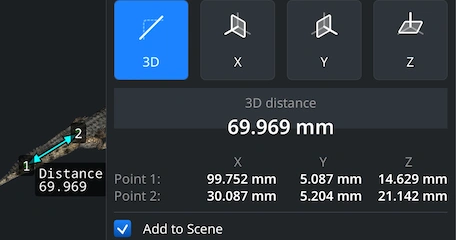
Finally, in order to perform quick distance evaluations within your GLTF scene, open the ‘Inspect’ tab and activate ’Measure Distance.’ Click any points on the model to obtain the exact 3D measurement (also, measuring along X, Y, and Z is possible).

100% Secure
No data leaves your device
Integrate real-time 3D visualization, mesh analysis, and measurement tools directly into your applications with MeshLib SDK.
Modern UI — built with Dear ImGui: ribbon interface, scene tree, view cube, and measurement tools.
Order-Independent Transparency (OIT) — realistic rendering of transparent materials.
Customizable Interaction — support for mouse, keyboard, touch gestures, and SpaceMouse devices.
Plugin Architecture — extend the Viewer with your own tools and workflows.