
Rewrap replaces a mesh with a new surface wrapped around it. It removes self-intersections, overlapping shells and inner parts in one step, and keeps only the part of the result with the largest volume. Use it when a model is built from many overlapping or intersecting pieces and you need one clean outer surface, for example before 3D printing.
How Rewrap works
Rewrap does not repair the original triangles. It places sample points densely over the surface, rolls a ball of the given Radius over these points, and builds new triangles wherever the ball touches them. Inner parts, overlaps and self-intersections do not get into the result. Finally, Rewrap keeps the largest part with a positive volume and drops the rest.
Rewrap a mesh
- Select one mesh in the scene tree.
- Click Mesh Repair › Rewrap.
- Check the Radius. By default it is twice the average edge length of the mesh. If you used Rewrap before and the old value fits the new mesh, the panel keeps it.
- Click Apply.
The mesh is replaced in place and the panel closes. Textures, UV coordinates and vertex or face colors are removed. Undo returns the original mesh.
| Parameter | What it does | Tip |
|---|---|---|
| Radius | "Radius of the ball rolled over the surface: the mesh is sampled densely enough to stop the ball, and every triangle touchable by an empty ball of this radius is included in the result." | A smaller radius keeps finer details and narrower gaps, but needs more sample points and more time. Details smaller than the radius are smoothed over. |
If no part of the result has a positive volume, MeshInspector shows "The result has no component with positive volume".
Example
A statue model with 300 000 triangles consists of 3 parts that intersect each other, with 2 387 pairs of intersecting triangles. Rewrap with the default Radius of 6.29 mm (the model is 824 mm long) took about half a minute on our test computer.
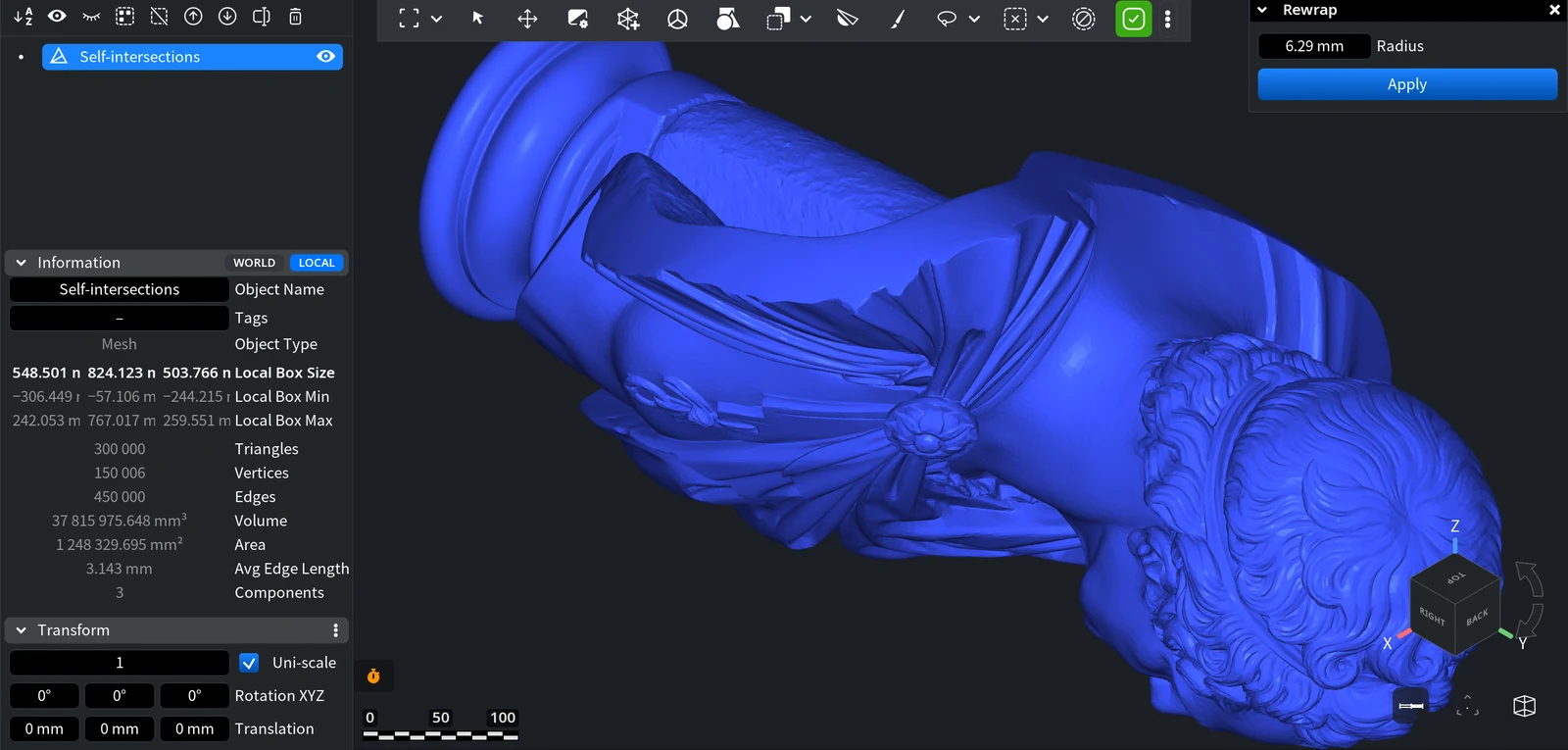
| Triangles | Components | Self-intersections | Holes | |
|---|---|---|---|---|
| Before | 300 000 | 3 | 2 387 pairs | 0 |
| After Rewrap | 329 216 | 1 | 0 | 1 |
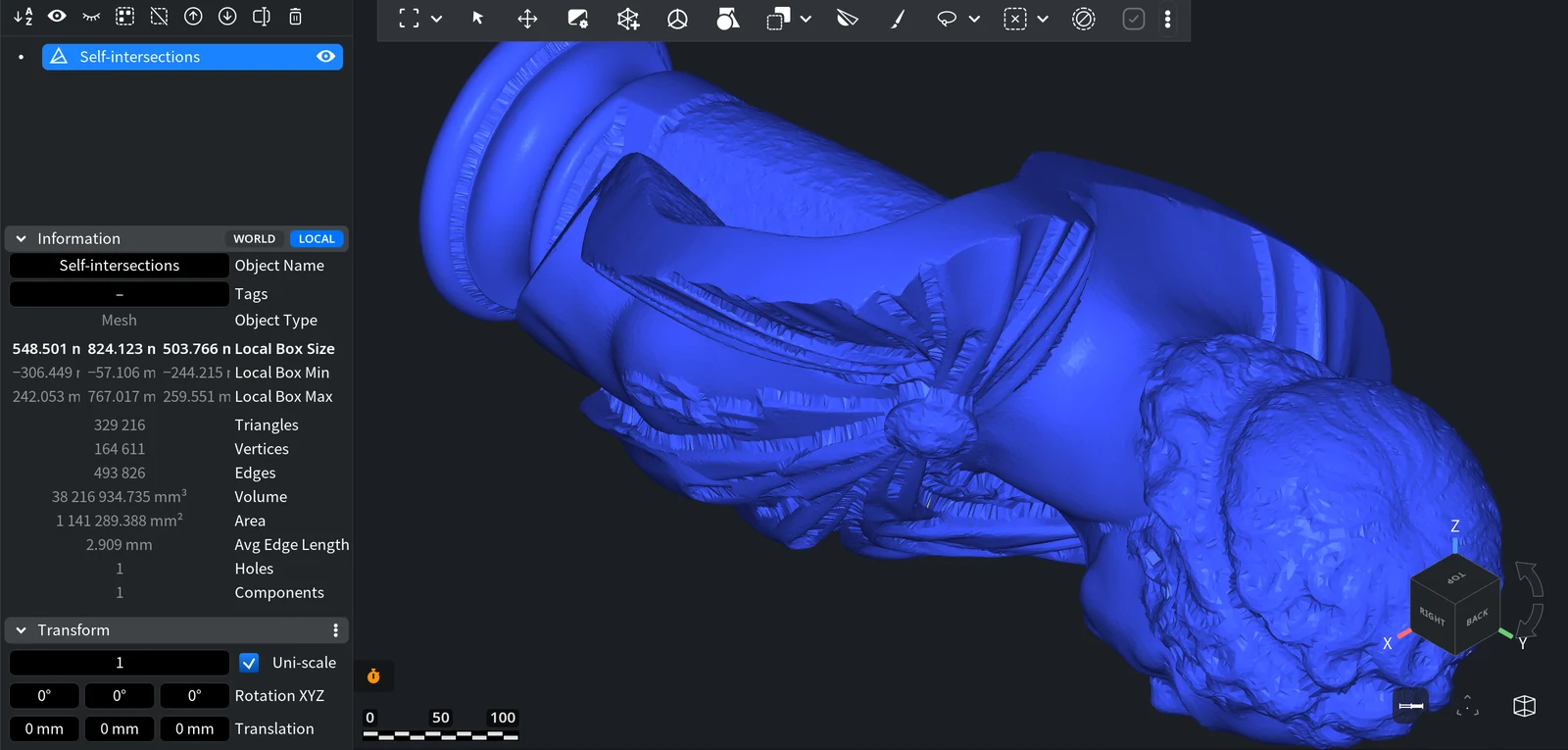
The result is one part without self-intersections. Details smaller than the radius, such as the hair curls, are smoothed. Here one hole also appeared: close it with Fill Holes. To keep more detail, undo and run Rewrap with a smaller Radius.
Rewrap or Auto Repair Mesh?
Both tools build a new surface instead of fixing the old one.
| Rewrap | Auto Repair Mesh | |
|---|---|---|
| Meshes per run | One | One or several |
| Inner parts and loose fragments | Removed: only the part with the largest volume is kept | Kept: loose fragments become separate solid parts |
| Detail is set by | Radius | Voxel size (Resolution) |
Use Rewrap when you need a single outer shell and do not care about inner parts. Use Auto Repair Mesh when you need to keep all parts of the model or rebuild several meshes at once; its Sharpening mode helps on models with sharp edges. Before both, try Mesh Healer: its Local Repair keeps the original surface. After a rebuild, reduce the number of triangles with Simplify.


